Print Barcodes — Steps
Purpose
Print barcode labels for products from the admin panel.
Navigation
- Go to Catalog → Print Barcodes.
Steps
1. Search Product
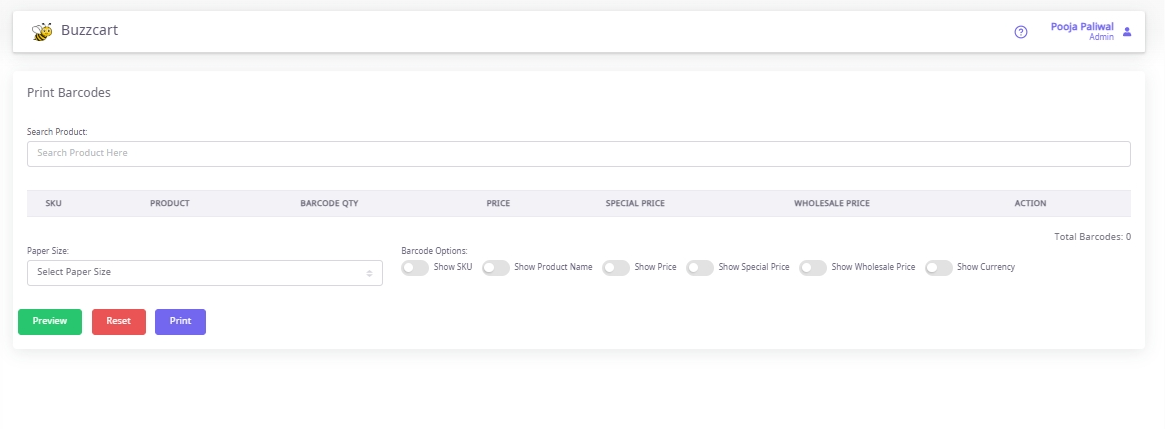
- Use the Search Product box to find a product by SKU or name.
- The product appears in the table with fields: SKU, Product, Barcode Qty, Price, Special Price, Wholesale Price.
2. Set Quantity
- Enter the number of barcode labels in the Barcode Qty column.
3. Select Paper Size
- Choose the correct Paper Size from the dropdown.
4. Configure Barcode Options
- Toggle what to display on the barcode:
- Show SKU
- Show Product Name
- Show Price
- Show Special Price
- Show Wholesale Price
- Show Currency
5. Preview
- Click Preview to check label layout.
6. Print
- Click Print to generate and print barcodes.
7. Reset (Optional)
- Click Reset to clear selections and start again.
Result
Barcode labels are printed as per selected options and paper size.