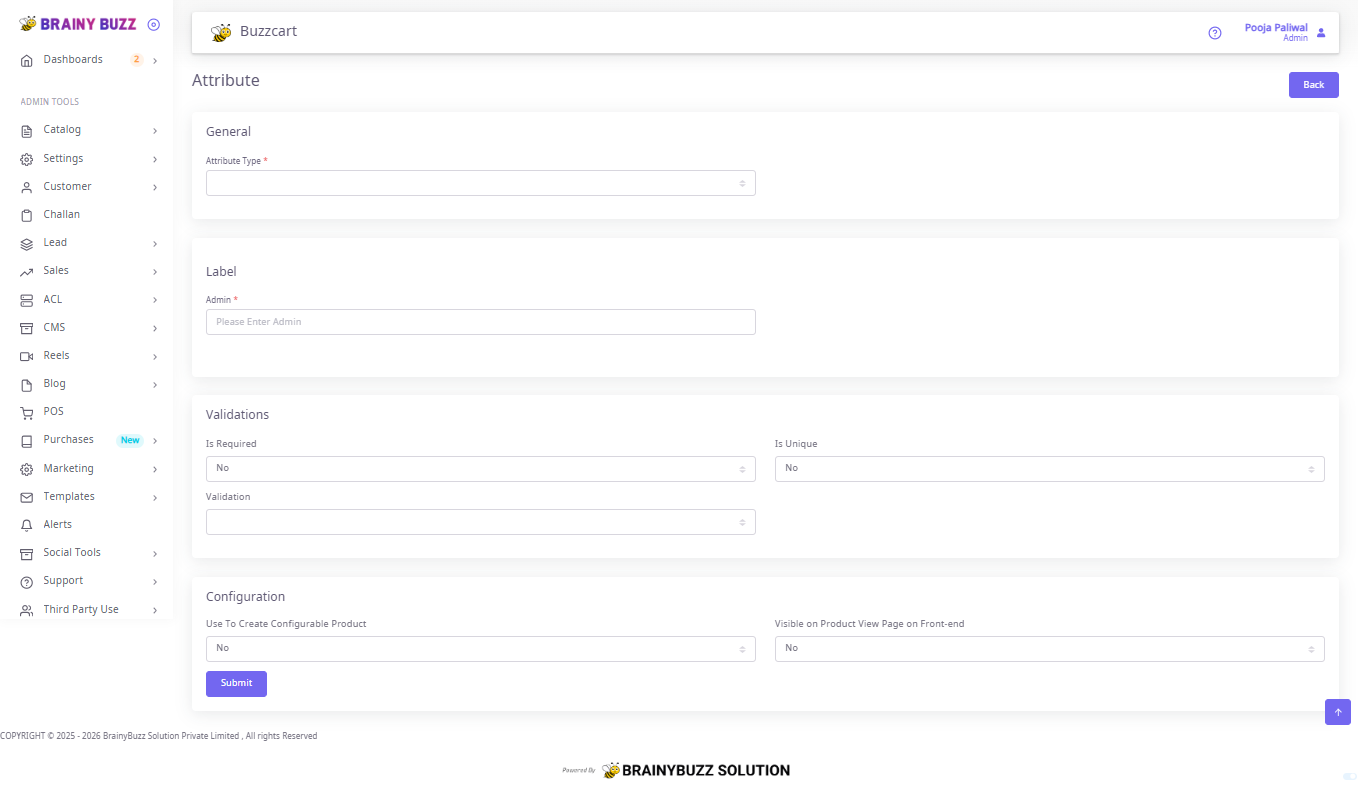
Attribute Creation
Purpose
Create and configure an attribute in the admin UI.
Attributes are structured product data (Color, Size, Material, etc.) used for display, filtering, and configurable product variants.
Prerequisites
- Logged in with Admin or Catalog Manager role.
- Know the attribute purpose (e.g., filter, variant, informational).
- If creating a select/multiselect attribute, prepare the list of option values (e.g., Red, Blue, Green).
Navigation
- From the left menu: Catalog → Attribute → Create
- The Attribute form opens (sections: General, Label, Validations, Configuration).
Form Overview
- General — Attribute Type (required).
- Label — Admin label (required).
- Validations — Required/Unique flags and validation rules.
- Configuration — Whether the attribute is used for configurable products and if it’s visible on the front end.
- Submit — Save the attribute.
Field-by-Field Step Instructions
1. Attribute Type (required)
- Location: General section, dropdown.
- Action: Select the attribute's data type.
- Typical options:
- Text — short free text.
- Textarea — long text (rare for structured attributes).
- Dropdown / Select — single choice from predefined options (recommended for Color, Size).
- Multiselect — multiple choices (tags, feature lists).
- Boolean — yes/no toggle.
- Date / DateTime — for date values.
Guidance:
Choose Dropdown/Select for consistent, repeatable values. Use Text only if values vary a lot and cannot be enumerated.
2. Admin Label (required)
- Location: Label section, field named Admin.
- Action: Enter the short label used in the admin interface (example: Color, Size, Material).
Guidelines:
- Keep it concise and descriptive.
- Use consistent naming (Title Case, no trailing punctuation).
- This field is required — the UI will display a red validation error if it’s empty.
3. Validations
-
Is Required (Yes / No)
- Set Yes if every product must have this attribute filled.
- Use sparingly — required attributes increase data-entry burden.
-
Is Unique (Yes / No)
- Use Yes only if attribute values must be unique across products (rare; for IDs/serials).
-
Validation (if available)
- Choose a rule (e.g., numeric, decimal, email, URL, regex).
- Examples:
- For numeric weight: choose Numeric.
- For strict SKU pattern: use Regex (test before enabling).
4. Configuration
-
Use To Create Configurable Product (Yes / No)
- Set Yes if this attribute generates configurable product variants (e.g., Size, Color).
- Note: Configurable attributes must support options (usually Dropdown).
-
Visible on Product View Page on Front-end (Yes / No)
- Set Yes to display this attribute on the product detail page.
- Set No for internal-only attributes.
5. Submit
- Review required fields (Attribute Type, Admin label).
- Click Submit.
- Result: Attribute saved and added to the attribute list.
- If rejected, UI highlights fields with errors.
After Creation: Add Options (for Dropdown / Multiselect)
If options aren’t added at creation time:
- Go to Catalog → Attributes (attribute list).
- Find and click Edit for the attribute.
- Locate Options / Values / Manage Options.
- Add each option:
- Option label (admin and, if supported, frontend/store view labels).
- Sort order (for display sequence).
- Save the attribute.
Example options for Color: Red, Blue, Green, Gold, Silver.
Using Attributes in Product Creation
- Create/Edit Product: Go to Catalog → Products → Create/Edit.
- In the product form, locate the attribute fields and enter/select values.
Configurable Products
- Ensure attribute(s) for variants are marked Use To Create Configurable Product = Yes.
- When creating a configurable product:
- Select the configurable attribute(s).
- Generate child/simple products (each child must have an attribute value).
Examples
Example 1 — Color (for variants)
- Attribute Type: Dropdown / Select
- Admin: Color
- Is Required: Yes
- Is Unique: No
- Validation: —
- Use To Create Configurable Product: Yes
- Visible on Product View Page on Front-end: Yes
- Options: Red, Blue, Green
Example 2 — Weight (informational)
- Attribute Type: Text
- Admin: Weight (g)
- Is Required: No
- Is Unique: No
- Validation: Numeric
- Use To Create Configurable Product: No
- Visible on Product View Page on Front-end: Yes