Attribute Family Creation
Purpose
Create and configure an Attribute Family in the admin UI.
An Attribute Family groups related product attributes (e.g., General, Price, Shipping, Description) so products can reuse a consistent set of fields and groupings.
Prerequisites
- Logged in with Admin or Catalog Manager role.
- You already have the attributes you want to include (if not, create attributes first).
- Know the family code and name you want to use.
Navigation
- From the left menu: Catalog → Attribute Family (open the Attribute Family management page).
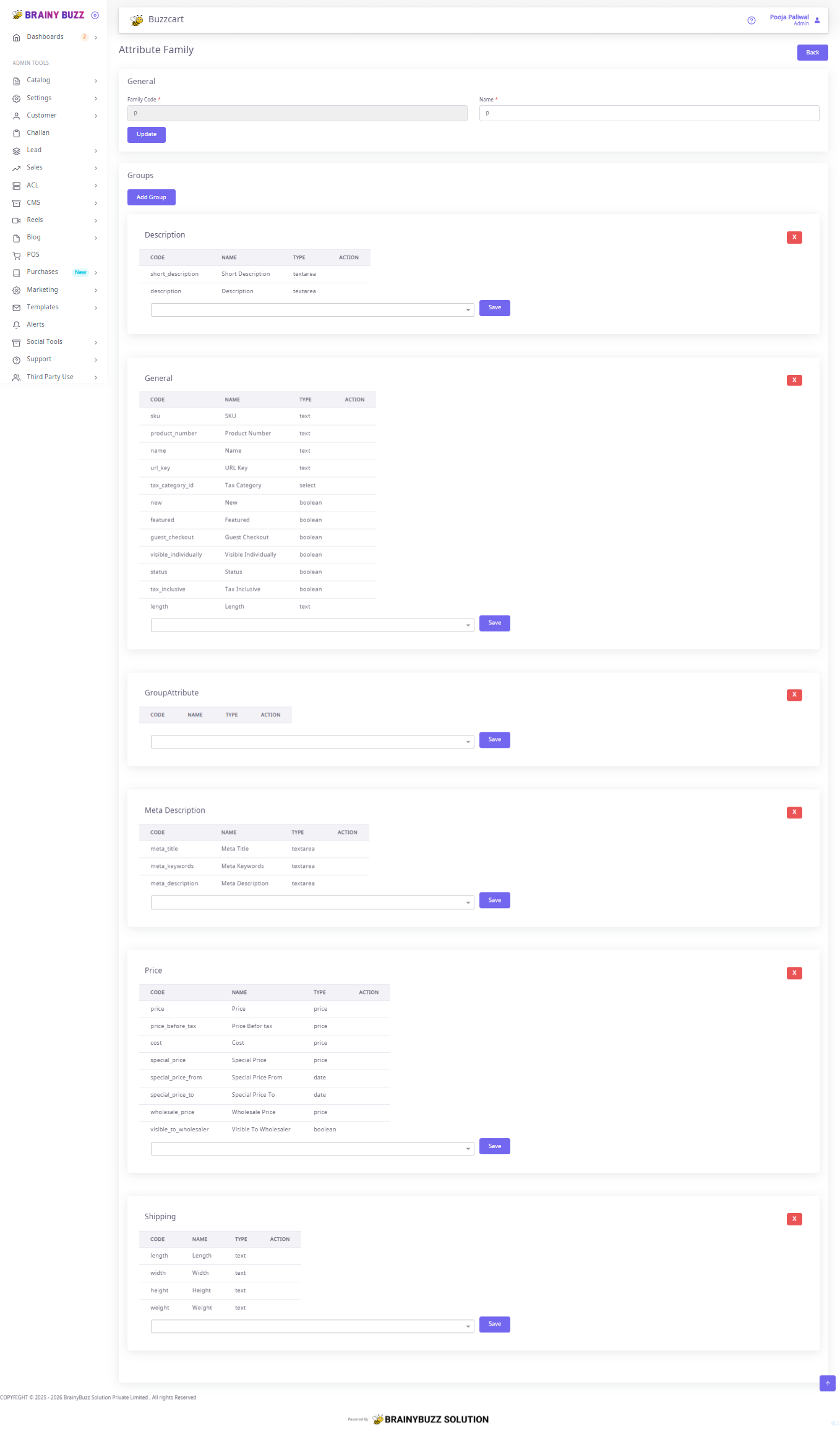
- The page presents: General (Family Code, Name) and a Groups area listing group cards (Description, General, Meta Description, Price, Shipping, etc.).
Form overview
- General — Family Code (required) and Name (required).
- Groups — list of group cards. Each group displays a table of attributes and a dropdown + Save control to add attributes.
- Group card top-right has a red X (delete group). Each attribute row has an Action column (remove attribute).
- Use Update (or the page Save/Update control) to persist General changes; use each group's Save to persist attribute additions to that group.
Step-by-step process
-
Open the Attribute Family page
- Navigate: Catalog → Attribute Family.
- Click Create (if available) or open an existing family to edit.
-
Fill General information
- In the General section fill Family Code (required) — short, unique code (example:
pordefault_family). - Fill Name (required) — human readable name (example:
Default Product Family). - Click Update (or the page-level Save button) to persist the family record.
- In the General section fill Family Code (required) — short, unique code (example:
-
Add a new group
- Click Add Group. A new group card appears in the Groups area.
- (If the UI asks) enter the Group name (example:
Accessories,Dimensions). - The group card will show an empty attributes table and a dropdown control at the bottom to add attributes.
-
Add attributes into a group
- Expand the target group card (e.g., Description, General, Price).
- Use the dropdown at the bottom of the group to select an attribute to add to this group.
- The dropdown contains existing attributes (e.g.,
sku,price,meta_description,weight).
- The dropdown contains existing attributes (e.g.,
- Click the group's Save button to attach the selected attribute to the group.
- Repeat selection + Save for each attribute you want in that group.
-
Remove attributes from a group
- In the group's attribute table locate the row for the attribute.
- Click the Action control (red
xor remove icon) to remove it from the group. - Confirm removal if a confirmation dialog appears.
-
Delete an entire group
- Click the red X at the top-right corner of the group card.
- Confirm deletion if prompted. (This removes the grouping — it does not delete the attribute definitions themselves.)
-
Finalize and verify
- After adding groups and their attributes, ensure General (Family Code & Name) is saved (click Update again if needed).
- Optionally navigate back to the Attribute Families list and confirm the new/updated family is listed.
- Test by creating/editing a product and selecting this Attribute Family — the product form should show the grouped attributes as configured.